
Read more Installation of GPS
Read more How to use the app
Read more Edit and confirm trips
Read more Privacy
To quickly get started
1. Log in to activate your user
Click here to get to log in page
Link expired or did'nt work? Click here to send a new one
2. Download Autogear Driver and log in
Android: Download from Google Play Store 📲
iOS: Download from the App Store 📲
12V
This device plugs directly into your 12V outlet, also called the cigarette lighter socket. Most cars have two such outlets, one in the front near the dashboard and one in the trunk. You can use both.
OBD
OBD stands for On-Board Diagnostic and is where the mechanic plugs in diagnostic tools when your car is being serviced. You usually find the OBD port between the steering wheel and the pedals, sometimes behind a cover. If you need an extension cable to close the cover or bring the device up to the dashboard, contact customer service, and we'll assist you.
- Find the diagnostic port in your car
Start by locating the diagnostic port in your car. The diagnostic port is a standardized connector that manufacturers are required to include. It’s often found in the area between the steering wheel and the pedals inside the car. Sometimes there’s a cover over it.
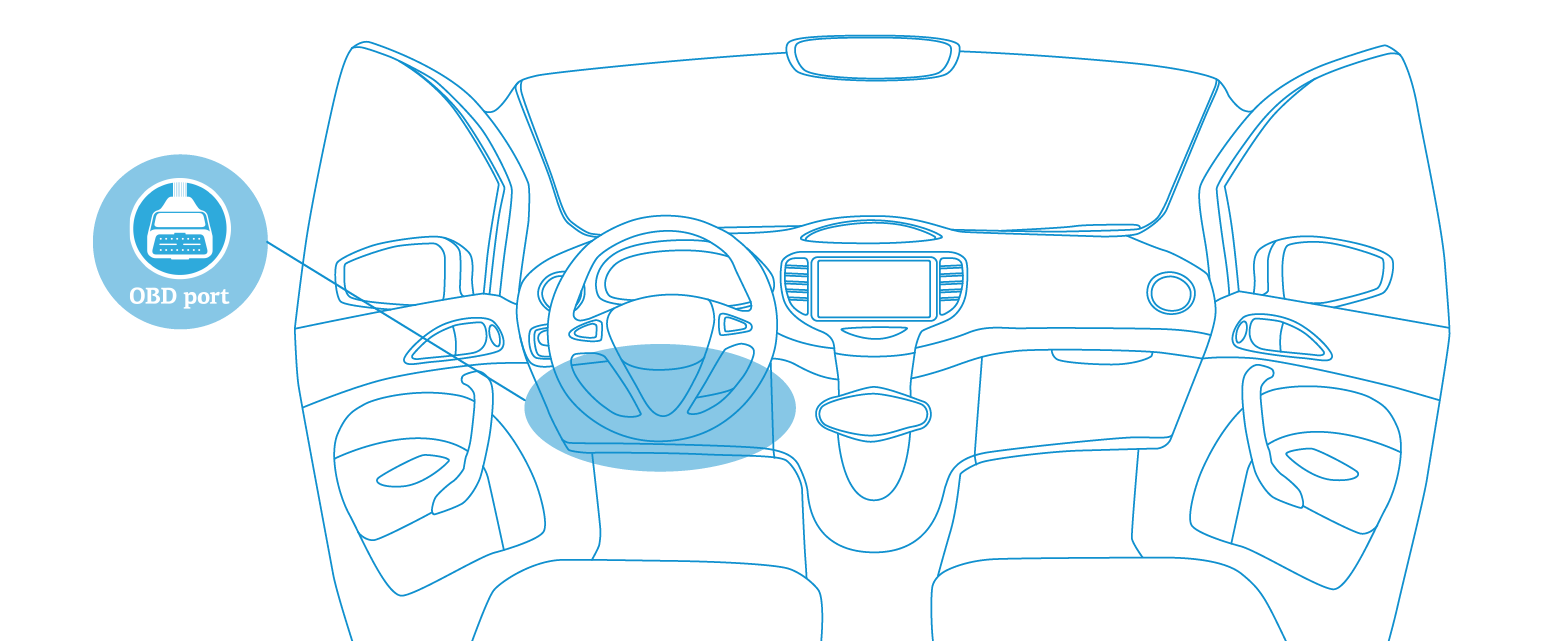
- Plug the GPS device into the car’s diagnostic port
Plug the GPS device into the diagnostic port. Once connected, a small light will indicate that the device is powered. If no light appears, the device is inserted incorrectly, and you need to remove and reinsert it.
- Use the car as normal
You’re all set! The GPS device has a built-in SIM card that automatically sends your driving log to your trip book. As soon as the car starts moving, the GPS turns on and begins transmitting the car’s location to your trip book. All data traffic from the SIM card is included in the subscription.
What is recorded during a trip includes the date, time, start and stop addresses, and toll charges. Additionally, the vehicle and driver details will be recorded if these are set up in the trip book.
All recorded trips are sent to your inbox unless auto-confirmation is enabled.
Remember: The plug should remain in your car at all times. It may take a few minutes for the device to start logging on its first use.
Hardwired
This connects directly to the car’s battery, with instructions provided in the package. In short, the positive (+) wire should connect to the positive terminal and the negative (-) wire to the negative terminal.
Tips
For those using a GPS device that connects to the OBD port, an extension cable can be ordered free of charge.
There are two reasons you might need this:
-
Poor coverage:
In rare cases, the GPS device may experience poor coverage, leading to inaccurate trip logs. Use the extension cable to place the device in a location with a clear view of a window. -
Inconvenient placement or desire to hide the device:
In some cars, the device may be intrusive because it sticks out into the driver’s area. Others may want to hide the device. In these cases, the extension cable offers flexibility for placing the device.
About using the OBD port
Can't find the port in your car?
Check the overview of OBD ports for different car models or search on Google for 'obd location' + your car model to find the answer.
What is OBD?
OBD stands for Onboard Diagnostics.
As early as the 1970s and 1980s, manufacturers began using electronic tools to test and diagnose vehicle issues. This technology has evolved, and since the mid-1990s, OBD-II has been a standard in cars, providing full insight into the engine and most parts of the car.
Can Autogear’s GPS device damage the car?
No. Autogear does not use the car’s functions and is not dependent on being connected to the car’s computer. The Autogear device has its own GPS chip and data connection (SIM). We only use the car’s power supply and are not in contact with the car’s computer.
Can using the OBD port damage the car?
Yes, in the worst case, other unsafe products connected to the OBD port can damage the car’s electronics or affect how it functions. For example, we have personally experienced windshield wipers starting on their own when using a cheap product from China.
Does Autogear produce its own hardware?
We use global suppliers that deliver large volumes of devices and maintain high safety standards.
Driver app user guide
Sort your trips how you want using the tools in the app to view only the trips you need.
For example, you can filter trips that are "missing a purpose" or "missing a project" so you can quickly add a purpose or project and confirm the trips.
- Log in with the username (email) and password you use for the web solution. You can change language up in the right corner where you see the flag
- Once logged in, you will also receive a message to grant certain permissions for the app to work optimally. Allow notifications and location access to get the most out of the app.
- Trips: When you log in, you will see an overview of all trips where you are registered as the driver. The default selection for the period is "Last 30 days." Change as you wish.
- You can further sort trips with the Filter icon. By default, Unprocessed trips and Driver are selected. It is also possible to sort further by trip, status, project, and subscription/cars (if you have access to more).
- If you want to manually add a trip or trips, change the order in which the trips are displayed in the app, you can tap on Menu icon in the top right corner.
Edit and confirm trips 🖋️
Each trip is displayed as a separate item. It contains all standard information, such as:
- Start and stop time
- Addresses
- Number of kilometers
- Total amount
- Purpose of the trip
- Driver
- Project
Here's how you can view/edit the trips:
Set the trip as business or private
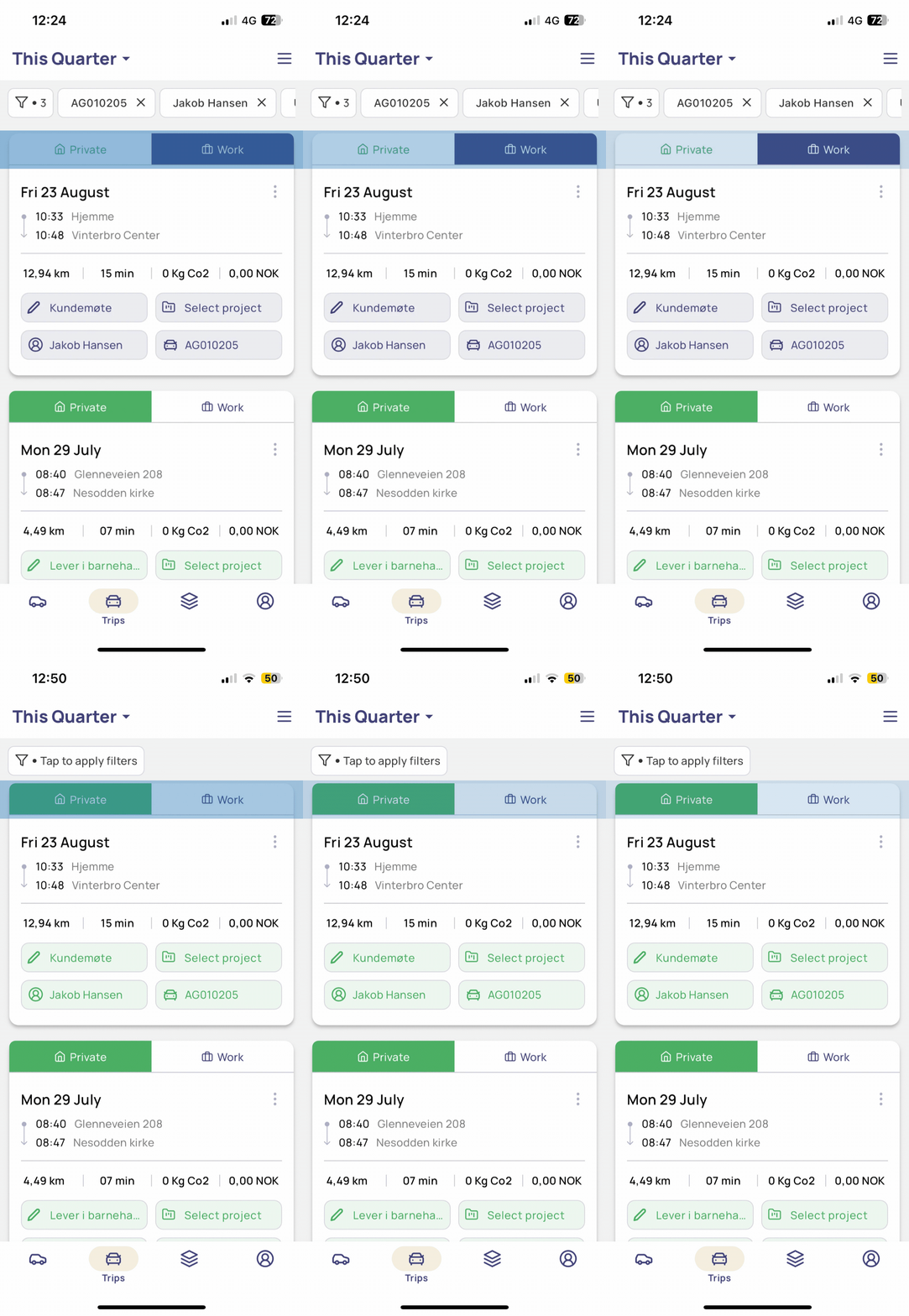
Add purpose, link to a project
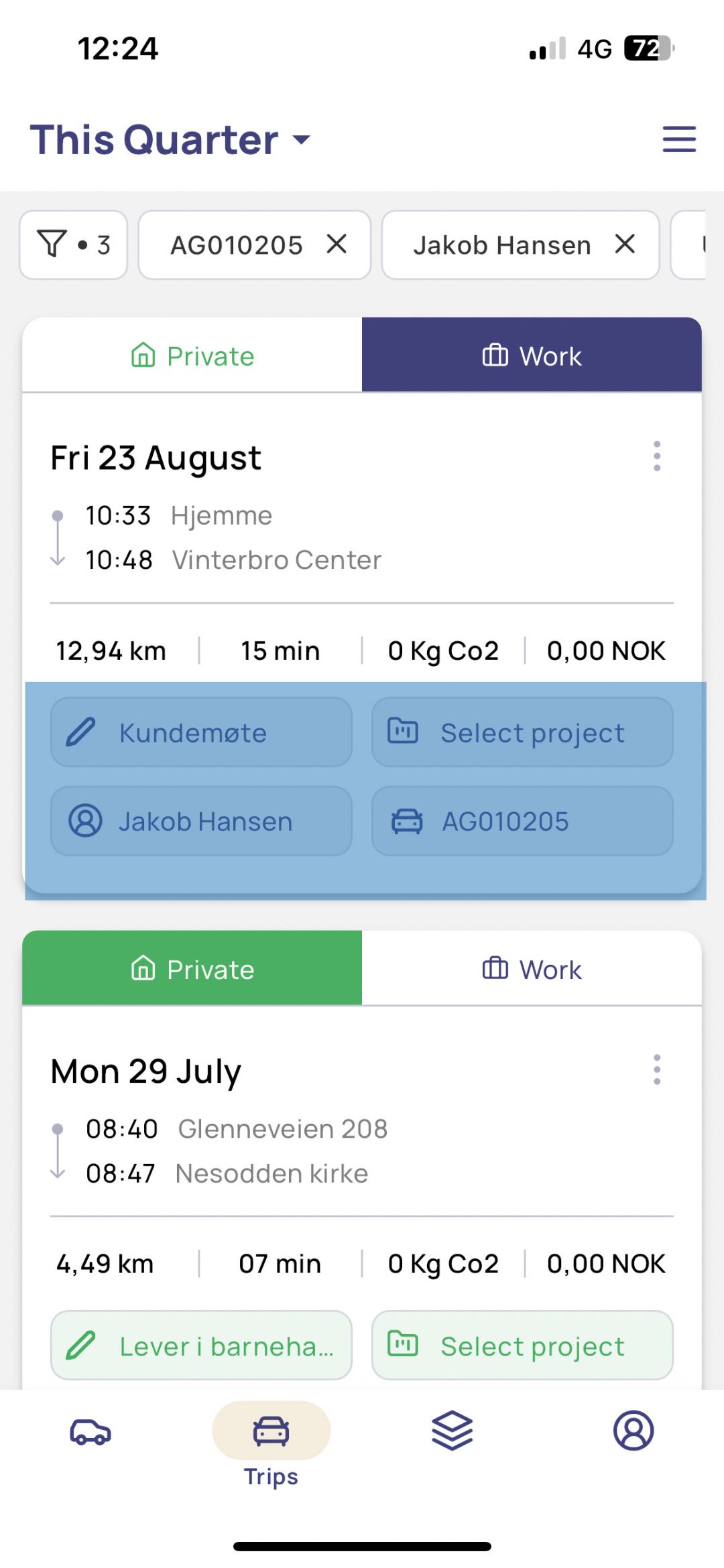
View amount and delete trip
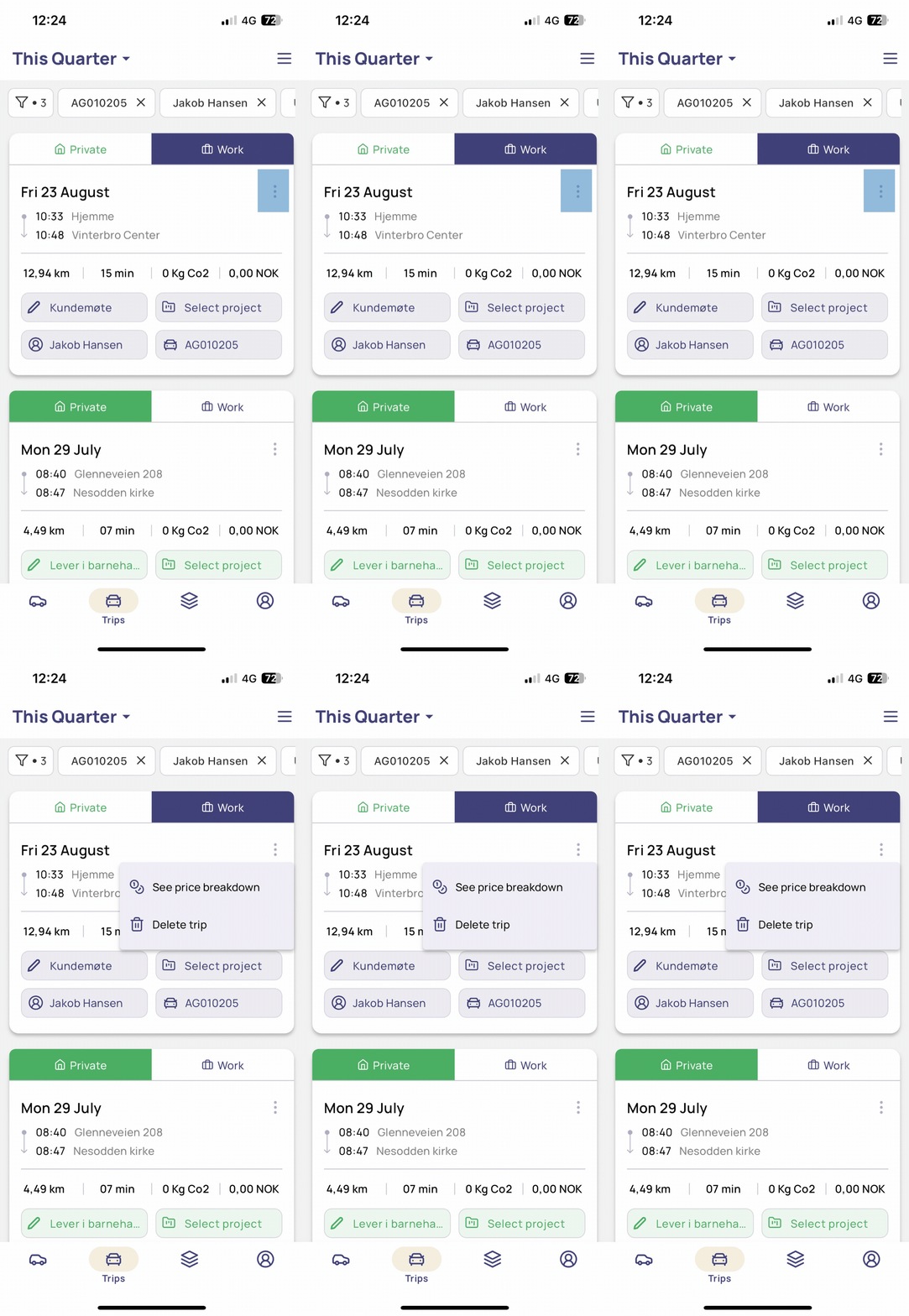
See all details and edit
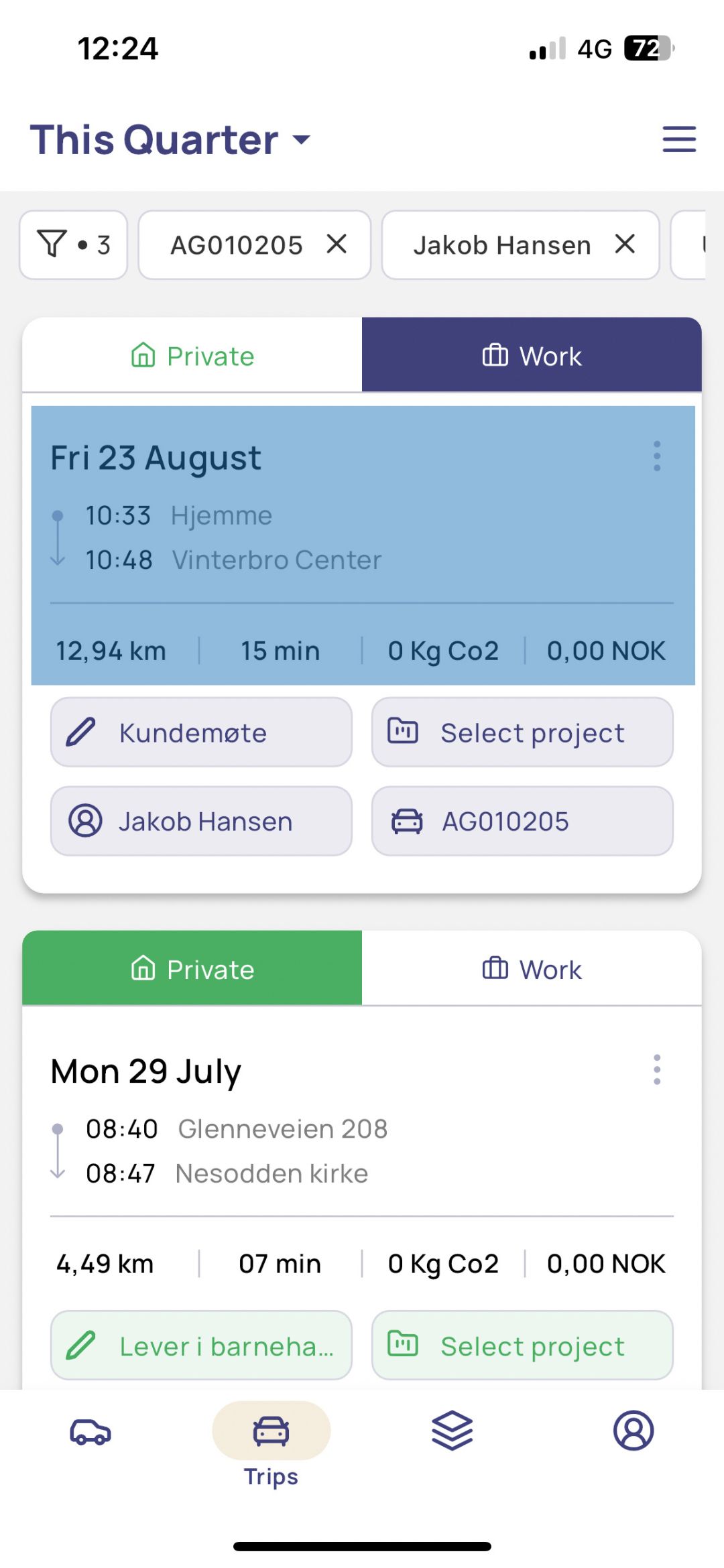
Swipe right to confirm the trip
1. Confirmed trips are grouped by month under the PENDING tab. Click on Submit, and you will receive a confirmation that the report has been saved.
2. The claims move over to SUBMITTED. Here, you will also see an overview of Completed reports.
3. Once the claim is paid, you can move it to SUBMITTED, or if you have an approver, the claim will be moved to COMPLETED once it is approved.
Pivacysettings
We take privacy seriously and aim to make it simple and transparent. Privacy is managed individually by each user (driver), which means you have full control over who can see your trips and vehicles.
Privacy has two categories:
- Trips and Reports
-
Low
I, and all users linked to this account, can view trips where I am listed as the driver and generate reports with my trips. -
Medium
I, the Account Owner, and Admin can view and report on all my trips, both private and business. -
Strict (Recommended for Van Class 2)
Only I can see all my trips. My private trips are hidden from all other users. The Account Owner and Admin can only see and report on my trips marked as business. -
Maximum (Recommended for Mileage Allowance)
Only I can view and report my trips; no one else has access. If the Approval Module is enabled, the approver will see the details of the claims I have submitted for approval.
Exception: Trips with the rate "Van Class 2 Business" will be visible to the Account Owner and Admin.
- Overview Map
If you are set as the default driver for a vehicle, you can configure whether this vehicle is visible in the Locator (overview map). This applies to both the web version and the mobile app of Locator.
Privacy settings: https://app.autogear.com/dashboard/privacy-setting
Learn more about the overview map and tool tracking here: https://support.autogear.no/hc/no/articles/10518807286172-Fl%C3%A5testyring-Units-og-tags
Check which settings are in use
Under Account - Users and Team, you can see a list of all users added to the trip log with their privacy settings, shown on the far right of the user list.
This tells us that the user has set their privacy to the strictest level, but the vehicle is visible every day, around the clock, except on Saturdays.
What is the default setting for a new user?
The default setting for all new users on new accounts is Strict, unless otherwise agreed.
What happens to trips without a driver?
Trips without a defined driver, and vehicles without a default driver, are not affected by the privacy settings.